Amazon
CarlinKit CarPlay Dongle only for Car with Android Head Unit System 4.4.2+,New Upgrade Version,Built-in APK App,Support Wired/Wireless CarPlay,Wired/Wireless Android Auto,Online Upgrade etc.
CarlinKit CarPlay Dongle only for Car with Android Head Unit System 4.4.2+,New Upgrade Version,Built-in APK App,Support Wired/Wireless CarPlay,Wired/Wireless Android Auto,Online Upgrade etc.
Couldn't load pickup availability
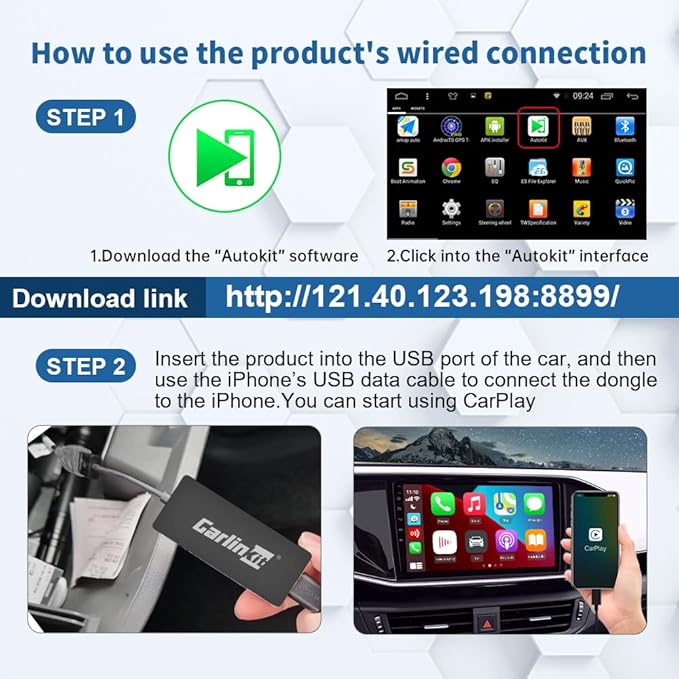
- 『CarlinKit CarPlay Dongle for Android Car Radio』The power of your phone on your car screen - CarPlay and Android Auto is a simpler, safer way to use your phone in the car.Tips: This dongle is not available for cars that cannot install APK(Here is the autokit.apk download address, " http://121.40.123.198:8080/autokit/autokit.apk ".)Not suitable for cars with OEM wired carplay,not suitable for boss android radio.
- 『Compatible Car & Mobile Devices』This product is only for Android head unit with Android 4.4.2 or above operating system.This carplay head units dongle is supports for iPhone 6 or above,IOS 10 and above;supports for Android phone with Android version 11 or above,some Google Pixel or Samsung Galaxy.
- 『Main Functions』Support Wired CarPlay/Wireless CarPlay, Wired Android Auto/Wireless Android Auto, Voice Control, Siri, GPS Navigation App (real-time navigation), Online Music App, Screen mirroring, etc. Help you drive your car safely. Please notice our device's operating speed is according to your phone's operating speed.
- 『How to connect』①Wireless Apple connection. Open AutoKit APK on the car machine, insert product, Apple phone WiFi and Bluetooth are turned on at the same time, Apple phone Bluetooth connection product signal. ②Wireless Android auto connection.Open AutoKit APK on the car machine, insert product, Android phone WiFi and Bluetooth Turn on at the same time, the Bluetooth of the Android phone is connected to the product signal.
- 『After-sales Help』We do strict quality control, we will check and use it before delivery to ensure every products can be used.If you encounter the problem of adapter cannot be used in your car or has other malfunctions, please do not hesitate to contact us to solve the problem for you.
Product description


How to connect Car Adapter?

How to connect can get wireless carplay?
- 1.First Install the “AutoKit” APK to the car Android head unit. (found APK in manual), and then Connect the CarPlay USB dongle with Android head unit (via USB).
- 2.Confirm that the WiFi and Bluetooth functions of the iPhone are turned on (please make sure that it is not connected to any other devices at this time.)
- 3.Enter the iphone's Bluetooth interface to find the the product's Bluetooth signal (find AutoKit-****).
- 4.Click the signal "AutoKit-****" on the iPhone and enter the password "0000" to successfully connect to CarPlay.
Principle: Products through the Bluetooth certification, WIFI transmission data.
How to connect can get wireless android auto?
- 1.First Install the “AutoKit” APK to the car Android head unit. (found APK in manual), and then Connect the CarPlay USB dongle with Android head unit (via USB).
- 2.Confirm that the WiFi and Bluetooth functions of the Android phone is turned on (please make sure that it is not connected to any other devices at this time.)
- 3.Enter the Android phone 's Bluetooth interface to find the the product's Bluetooth signal (find AutoKit-****).
- 4.Click the signal "AutoKit-****" on the Android phone and enter the password "0000" to successfully connect to android auto.
2024 CarlinKit Wireless Car Adapter for Car with Android system 4.4.2 or above


At the same time, Screen Wired Mirroring connection is also supported

IOS System Wired Screen Mirroring connection
Step 1: Open AutoKit APP in your car
Step 2:Plug the product into the USB port of your car
Step 3:Click the "gear icon" shown on the top of the screen----select "Mirror" in Apple mode,Plug in your phone and the mirror connection will work
Note:
The method of switching Mirror mode to CarPlay mode:
Click the "gear icon" shown on the top of the screen----select "Mirror " in Apple mode
Android Wired Screen Mirroring connection
1. Connect the product to the car.
2. Connect the phone and the product with a data cable.
3. Open the Autokit app - Enter Settings - switch Android mode to “mirror”
4. Click "About Phone Options" in the phone settings menu, click the version number continuously until you enter "Developer Mode". Then you can successfully enjoy the fun of wired mirroring.
How to check the product version?

Be sure to check these conditions before buying!!!
1.This dongle is not available for cars that cannot install apk. (Such as the Original OEM head unit, Original factory carplay car etc.,
2.Some Android Head unit can't install APK. Please install APK before buying it. If you can't install it, please don't buy it.)
3.COMPATIBLE DEVICES - Car stereos with android version(4.4.2 and above), The product supports most Car Radio with Android Head Unit, but it's not 100%
Common problems encountered:
Q:AutoKit_ The car's software crashes when opened
A:Change "rendering" to "default" or "decoding method" to "software decoding" in the settings
Q:AutoKit_ Both wired and wireless cannot be connected
1. Phone restart
2. Open APK Settings - "Advanced Settings" and change the Apple/Android mode back to "CarPlay/Android Auto" without selecting "Mirror Mode"
3. If the cable still cannot be connected, please go to APK settings - "Connection Mode" to "Manual", and then plug in the cable to connect to the cable
Q:AutoKit_ Android phone is constantly connected
1. Clear Google Service Cache
2. Clear Android Auto cache
3. Upgrade Android Auto and Google Map on your phone in the Google Store
4. Restart the phone and ignore Bluetooth
5. First, use a data cable to connect the phone and the box to access the wired Android Auto. After successful connection, unplug the data cable and reconnect to the wireless Android Auto
Q:AutoKit_ The prompt "Product Unauthorized, Please Contact Dealer" appears
A:The box does not match the APK, please install the correct APK
Q:AutoKit_ During the connection process, a help/question mark was clicked, causing the screen to freeze and not move
A:Unplug and reconnect the phone, remember not to click on the question mark during the connection process
Q:Autokit_ Sorry, the program encountered an exception and is about to exit
1. Reinstall the AutoKit app or try using a different version
2. Please set the "whitelist" function on the car console to add the AutoKit app to the whitelist